An agency onboards a local client two weeks before a campaign and finds the Business Profile unverified. The first two questions about Google Business Profile verification are which method Google will ask for, and how long it takes. The scenario is hypothetical: no agency or client was involved in this reading.
This piece is a reading of five Google Business Profile Help pages, read logged out on 28 October 2026 and re-read on 17 November 2026. The verification flow inside a Google Account was not opened, and no third-party service was consulted.
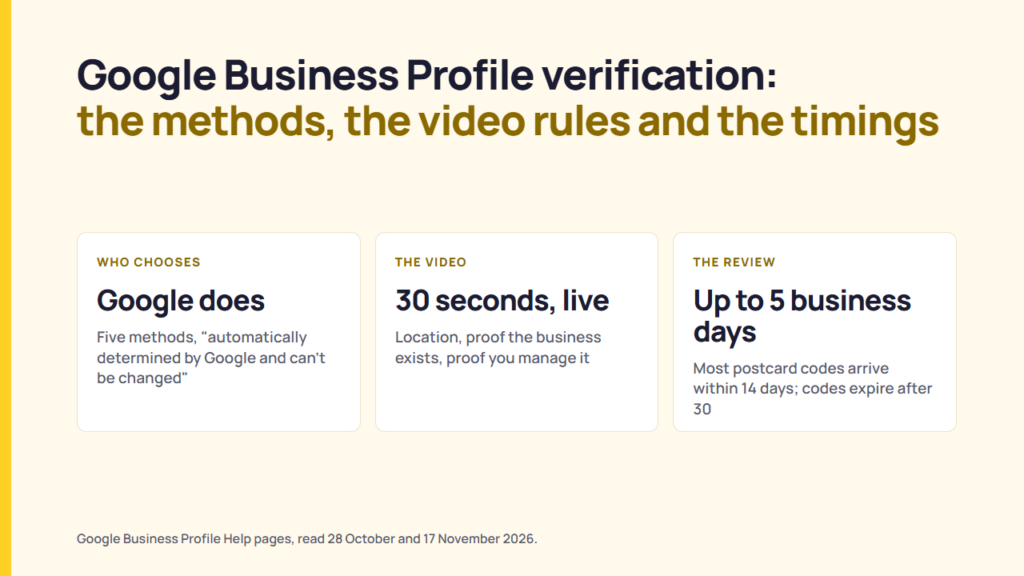
Google documents the methods and then says the choice is not yours: “Verification methods are automatically determined by Google and can’t be changed.” It recommends video verification where a business is eligible for it, publishes in detail what that video has to show, and says a verification review takes up to five business days.
Google Business Profile verification: the methods Google documents, and who chooses
Google’s verification article lists the routes, and immediately removes the decision from the business: “Verification methods are automatically determined by Google and can’t be changed.”
| Method | What Google documents |
|---|---|
| Phone or text | A code is sent to the business phone number. Google notes that “Interactive Voice Response (IVR) systems won’t get the code”. |
| Verification is completed by following steps sent to an email address. Google says to make sure you can use the email address shown on the verification screen. | |
| Live video call | A support representative guides you through a call that shows your location and ownership. “Live video calls are only available within the business hours of your location.” |
| Postcard by mail | Google mails a 5-digit code to the business address, and you enter it on the profile. “Most codes arrive within 14 days”, and “Verification through postcard isn’t available for all businesses”. |
| Video recording | Google’s recommended route where it is offered: “If your business is eligible for video verification, we recommend that you use this option.” |
Source: Google Business Profile Help, “Verify your business on Google”, read 2026-10-28, re-read 2026-11-17.
Google states what the choice depends on without publishing the rule that decides it. The article says, “The verification options available to you depend on your business type, public info, region, or business hours”, and, under Live video call, that “Live video verification may not be available for all businesses”. Google also says, “In some cases, you may need to verify your business with more than one method.” Nothing on the page sets out the eligibility logic, so a business cannot work out in advance what it will be offered.
Two routes skip the wait. Google says “In some cases, Google verifies a profile instantly”, and gives two cases where that can happen: verifying the website with Google Search Console, and using bulk verification. Google also frames why any of this exists: “When you verify your business on Google, you gain ownership of your Business Profile.”
One note on naming. Much of the search demand for this still uses “Google My Business verification”, after Google Business Profile’s former name. The help pages now say Business Profile throughout, and so does this piece.
How to verify a Google Business Profile, in the order Google lists
Google’s article sets the process out as four steps, and the first one happens before any method is offered.
- Sign in to a Google Account. Google says “You need a Google Account to sign up for a Business Profile”, and that you must be signed in to the account associated with the profile to find it.
- Find the profile, by searching for the business name and city, or for “my business”. If the business is not on Google yet, add it. If it is there but unclaimed, claim it “so you can verify and control how it shows on Google”.
- Select Get verified on the profile and complete whichever method Google offers. Where more than one option appears, Google suggests trying the options available to you.
- Wait for the review. Google says reviews take up to 5 business days, and “When your business is verified, you’ll get a confirmation email.”
Source: Google Business Profile Help, “Verify your business on Google”, read 2026-11-17.
An agency sometimes finds the profile already verified by someone else, such as a former employee or a previous agency. Google’s ownership article covers that case. For a storefront or hybrid business, the requester enters the business at business.google.com/add, selects Request access and fills out the form. Google says “The current profile owner is then notified by email and has 3 days to respond.” If there is no response after 3 days, “you may have the option to claim the profile”, and Google adds, “The option to claim a profile isn’t always available.” A service-area business requests ownership by contacting Google instead.
Source: Google Business Profile Help, “Request ownership of a Business Profile”, read 2026-11-17.
What the verification video needs to show
Google requires a verification video to prove three things: where the business is, that it operates, and that you manage or represent it. What satisfies each one depends on the type of business.
| What the video must prove | Storefront or hybrid business | Service-area business |
|---|---|---|
| Location | Street signs, building numbers, nearby businesses or familiar places around the business | Street signs, nearby landmarks or other identifiers at the business address. Google warns against filming “empty land or locations without clear markers”. |
| That the business exists | The storefront or signage, with the business name “clearly printed on a permanent fixture”, matching the name on the Business Profile | The professional tools, equipment or products used for the work |
| That you manage it | Things only an employee can access, such as opening a cash register or using a point-of-sale system | Performing a service, or accessing business-only assets. Business documents such as a permit, invoice or utility bill matching the profile name also work. |
Source: Google Business Profile Help, “Verify your business with a video recording”, read 2026-10-28, re-read 2026-11-17.
Six rules apply to every video, whatever the business type:
- Capture the footage live. Pre-recorded video is not allowed.
- You cannot record offline and upload it later.
- The recording must be “unedited, unique, and complete”, with no breaks.
- It must be at least 30 seconds long.
- Record and upload it from a mobile device, through the Business Profile.
- Leave out sensitive information such as bank account, tax or ID numbers, private information, and other people’s faces.
Google’s published steps to record and submit the video, which were not tested here:
- On a mobile device, go to your Business Profile.
- Tap Get verified (you may need to enter a phone number and tap Next).
- Tap Business video, then Next.
- Read the video requirements, and allow location, camera and microphone access if asked.
- Tap Next, then Start recording, record, and stop.
- Review the video, or tap Try again to re-record.
- Tap Upload video.
Google also publishes why videos get rejected, under a “Review issues” notification. The examples it gives include “Business name not visible on storefront”, “No nearby area shown” and “Missing proof of authorization to operate the business”. A replacement video, Google says, should include everything from the first one plus the evidence that was missing. Google also says “You can delete your verification video anytime”, from Business Profile settings, and that if you don’t, “Google will delete it later.”
For an agency with two weeks, the video requirements are the most detailed preparation Google publishes, and the live video call section lists similar evidence to have ready. The method is not the business’s to choose and Google gives the review only an upper estimate, so the preparable work is the evidence. That is a reading from the two pages, not a statement from Google.
The timings for verification steps, in Google’s own words
| Step | What Google says |
|---|---|
| Postcard arrival | “Most codes arrive within 14 days” |
| Code expiry | “Verification codes expire after 30 days” |
| Review | “verification reviews take up to 5 business days”, and “On rare occasions, reviews may take longer” |
| Live video call availability | “Live video calls are only available within the business hours of your location” |
| Instant | “In some cases, Google verifies a profile instantly” |
Source: Google Business Profile Help, “Verify your business on Google”, read 2026-10-28, re-read 2026-11-17.
While a postcard is in transit, Google gives two instructions: “Do not edit your business name, address, or category on your Business Profile” and “Do not request a new code”, because requesting another one invalidates the code already in the post.
One line on that page matters more than any of the timings for an agency handling client codes: “Google will never ask for your verification code.” The next line goes further: “Do not share the verification code with anyone, even with those who manage your Business Profile.” Google’s page says a third party can be added to the profile after verification, as an owner or manager. What the platforms document about those roles when a person leaves is read in who owns the account when the manager leaves.
Why Google asks a business to re-verify
Google Business Profile verification is not always a one-time step. Google’s article names three situations, each with its own fix:
- The “Get verified” button appears again. Google says this “means Google couldn’t completely verify your business”, and the fix is to re-verify. If the profile shows several verification options, Google says you can try the other methods.
- A “Review issues” notification after a video. The video was not accepted. Select Review issues and follow the on-screen instructions.
- A request for additional info. Google says this is “likely because some of your business details were recently updated”, and the fix is to select Get Verified and re-verify.
The video page says the same thing more briefly: “To keep your business info accurate, changes to your business info may require re-verification.” For an agency, that makes a name, address or category change a step that can send a verified client profile back through the process, which is worth timing away from a campaign launch (a reading from the two pages, not a Google statement).
When verification fails, and what Google documents next
Several failures trace back to eligibility rather than evidence. Google’s guidelines say a business qualifies if it “has a physical location that customers can visit, or travels to customers where they are”. A business that rents a mailing address without operating there, which Google calls a virtual office, “isn’t eligible for a Business Profile”. The video page adds that an online-only business that “doesn’t offer any in-person services” is “not eligible for a Business Profile and can’t be verified”. On naming, adding unnecessary words to a business name “could result in the suspension of your Business Profile”, and Google “reserves the right to suspend access to Business Profiles on Google”.
Suspension is documented separately. Google says, “We may suspend or disable Business Profiles that don’t follow our guidelines.” When Google removes a profile, it says “The public can’t go to the profile” and “The owner and managers can’t act on the profile”. If the Google Account itself is restricted, Google says “the Business Profiles you manage are suspended and you won’t be able to create or claim other profiles”. How other platforms document restrictions and appeals is set out in what the platforms document about business account restrictions.
Google documents five steps for the way back:
- Bring the profile into line with the guidelines, and gather supporting evidence such as business registration, a business licence, tax certificates or utility bills showing the same business name and address as the profile.
- If the Google Account is restricted, lift that restriction first by appealing on the My accounts page.
- In the appeals tool, select the profile and the decision you are contesting, add the supporting material and submit.
- “Do not create a new Business Profile for the same business.”
- Appeals can be submitted once. Google reviews the appeal and emails the decision.
Google adds that a bulk process exists for anyone managing more than ten suspended profiles, which requires a spreadsheet of profile IDs, and that a denied appeal may allow an additional review if there is new evidence. For businesses in the European Economic Area, the page says “you may have additional redress options”; the statutory route behind that line is read in the DSA appeal rights available to account holders.
What an agency can plan around
Seven onboarding questions, each tied to a Google page.
| What the client asks | What Google’s pages support |
|---|---|
| 1. Can we verify without the postcard? | Not a choice. Google determines the method automatically and says postcard verification is not available for all businesses. |
| 2. How long will it take? | Up to five business days for a review. Up to 14 days for a postcard to arrive. Codes expire after 30 days. |
| 3. What should we have ready? | The video requirements are the most detailed preparation Google publishes, and the live video call section lists similar evidence to have ready. |
| 4. Can we use a coworking or mailing address? | A rented mailing address the business doesn’t operate from is not eligible. A co-working office is eligible only with clear signage, customers received during business hours, and the business’s own staff there during those hours. |
| 5. Should we send the agency the verification code? | No. Google says not to share the code “even with those who manage your Business Profile”, and that third parties can be added after verification. |
| 6. What if the video is rejected? | Google names the review issues, and says a new video should include everything from the first plus the missing evidence. |
| 7. What if the profile is suspended? | When Google removes a profile, it says “The public can’t go to the profile” and “The owner and managers can’t act on the profile”. |
Google publishes the requirements in detail and the eligibility rules barely at all. An agency can prepare the evidence and the calendar, and cannot prepare the method, which is worth saying at onboarding rather than in week two. The same habit applies here as to reading a platform’s own documentation before relying on it: “The alternative to reading these documents is finding out from an empty cell in a report you already sent. So pick a fixed point on the calendar, one your team actually keeps, and on that day open the developer changelog for every platform a report depends on.”, read on 30 August 2026. When a client starts the process is the client’s decision.
What could not be confirmed
This reading of Google Business Profile verification cannot settle seven points:
- The pages were read logged out, so the live verification flow inside a Google Account was not seen.
- Google states that the available options depend on business type, public information, region and business hours, and does not publish the rule that decides.
- No maximum video length appears on the page read here; only the 30-second minimum.
- Google publishes no figure for how often each method is offered, or how often videos are rejected.
- Whether any specific business qualifies for instant verification was not tested.
- The appeals tool and the ownership request form were not opened.
- The pages read do not cover how verification differs in countries with different address systems.
FAQ
How do you verify a business on Google?
Sign in to a Google Account, find or claim the Business Profile, select Get verified and complete the method Google offers. Google documents five methods: phone or text, email, a live video call, a postcard by mail, and a video recording. Which one you are offered is not up to you, because “Verification methods are automatically determined by Google and can’t be changed.”
Can you verify a Google Business Profile without a postcard?
Google says the method is not the business’s to choose: “Verification methods are automatically determined by Google and can’t be changed.” It also says postcard verification “isn’t available for all businesses”, and that where a business is eligible for video verification, “we recommend that you use this option”. Nothing Google publishes offers a way to select a method.
How long does Google Business Profile verification take?
Google says verification reviews take up to five business days, and that on rare occasions reviews may take longer. A postcard code mostly arrives within 14 days, and verification codes expire after 30 days. In some cases Google verifies a profile instantly.
What does the Google verification video need to show?
Google requires the verification video to prove three things: where the business is, that it operates, and that you manage or represent it. It must be captured live, be “unedited, unique, and complete”, run at least 30 seconds, and leave out sensitive information and other people’s faces.
How do I know if my business is verified on Google?
Google says “When your business is verified, you’ll get a confirmation email.” If the “Get verified” button appears on the profile again, Google says it “couldn’t completely verify your business”, and the profile needs to be re-verified.
Why is Google asking me to verify my business again?
Google says a request to re-verify is “likely because some of your business details were recently updated”, and that “changes to your business info may require re-verification”. The fix it gives is to select Get Verified and complete the method shown.
Can an online-only business get a verified Google Business Profile?
No. Google’s video verification page says a business that operates online-only and “doesn’t offer any in-person services” is “not eligible for a Business Profile and can’t be verified”.
What if someone else already owns our Business Profile?
Google lets a business owner request ownership from the current owner, who “has 3 days to respond”. If there is no response, Google says you may have the option to claim the profile, and that “The option to claim a profile isn’t always available.”
Sources
Publisher, page title, URL, read dates.
- Google Business Profile Help, “Verify your business on Google“, read 2026-10-28, re-read 2026-11-17.
- Google Business Profile Help, “Verify your business with a video recording“, read 2026-10-28, re-read 2026-11-17.
- Google Business Profile Help, guidelines for representing your business on Google, read 2026-10-28, re-read 2026-11-17.
- Google Business Profile Help, “Fix suspended or disabled profiles“, read 2026-10-28, re-read 2026-11-17.
- Google Business Profile Help, “Request ownership of a Business Profile“, read 2026-11-17.