For many freelancers, one personal Facebook profile is the admin account behind every client Page they run. Locking it down without losing that access means knowing what each setting actually covers. Who keeps that access when the manager moves on is a separate question, read in who owns the account when the manager leaves.
How to make a Facebook profile private, in Facebook’s own terms: open Settings and privacy, then Settings, then Audience and visibility. Set the audience for future posts under Posts, run Limit past posts, set who can see your friends list and switch off search-engine linking under How people find and contact you, turn on both tag reviews under Profile and tagging, and lock the profile if your country has the option. None of that hides your name, profile picture, cover photo, gender, username or user ID, which Facebook lists as public.
This piece is a reading of eight Facebook Help Centre pages, first read on 28 October 2026 and re-read on 4 November 2026, logged out. No settings screen was opened, and Facebook itself notes that “Some of these settings may change based on your profile type.”
Facebook has no single switch that makes a profile private. It has nine settings grouped under Audience and visibility, an audience selector on each post, a profile lock in some countries, and a list of information that stays public whatever you change. Turning off search-engine linking stops Facebook from providing your content to search engines, and it does not stop search engines from indexing what is already public.
How to make a Facebook profile private: the settings, in order
Each step below names the setting as Facebook’s pages name it, and the later sections quote what each one leaves out.
- Open the privacy settings. On a computer, click your profile picture in the top right of Facebook, select Settings and privacy, then click Settings, and find Audience and visibility. In the iPhone and Android apps, tap Menu in the top left, tap Settings and privacy, then Settings, and scroll down to Audience and visibility.
- Posts: set the default audience. The setting is “Who can see your future posts and reels?” Facebook says that after you change the audience on one post, “the next time you post, the audience will go back to the default audience that you selected in your privacy settings.” Friends or Only me are the narrower options.
- Posts: run Limit past posts. Next to Limit who can see past posts, click Limit past posts, then click Limit past posts to confirm. It changes every past post shared with more than Friends to Friends.
- How people find and contact you: three settings. “Who can see your friends list?” is Public by default. “Who can send you friend requests?” can be Everyone or Friends of friends. “Do you want search engines outside Facebook to link to your profile?” is a toggle.
- Profile and tagging: turn on both reviews. “Review posts you’re tagged in before the post appears on your profile?” and “Review tags people add to your own posts before the tags appear on Facebook?” are both toggles. “Who can see posts you’re tagged in on your profile?” sets the audience for those posts.
- Profile details: use the audience selector on each item. Facebook says to click About below your cover photo, click Options next to the information, click Edit, and use the audience selector next to it.
- Lock the profile, if the option exists. From your profile, click Options below your name, click Lock profile, then click Lock your profile to confirm. Facebook says the feature “isn’t available everywhere at the moment.”
To check the result, Facebook says “To see what your profile looks like to other people, use the View As tool”, and it offers a Privacy Checkup that walks through the same settings in one place. Both are covered below.
The settings Facebook names, and where they live
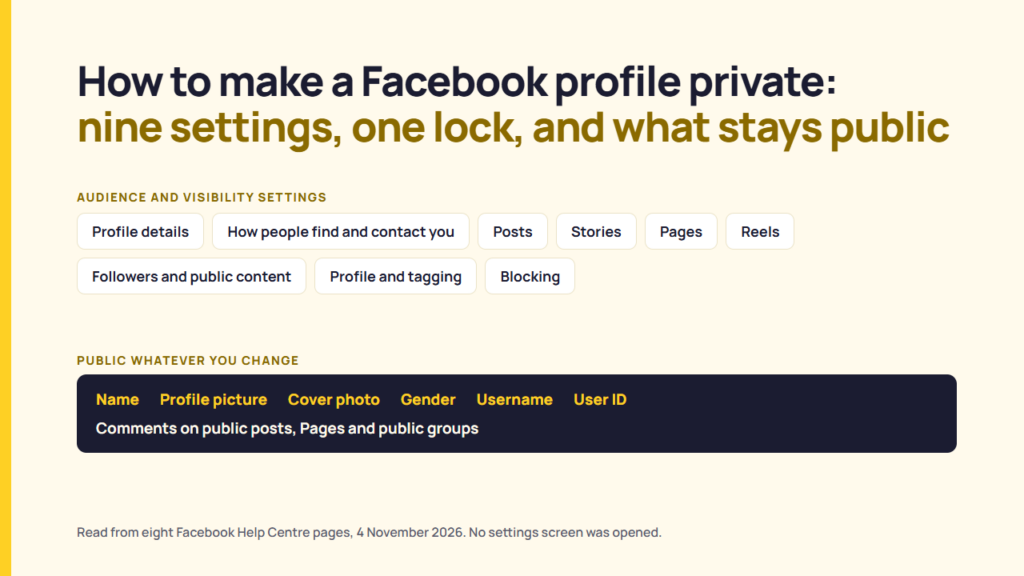
Facebook groups the profile controls under Audience and visibility in Settings and privacy, and names nine of them:
- Profile details
- How people find and contact you
- Posts
- Stories
- Pages
- Reels
- Followers and public content
- Profile and tagging
- Blocking
The path on a computer is: click your profile picture in the top right of Facebook, select Settings and privacy, then click Settings, then under Audience and visibility click the option you want to change. Facebook’s iPhone and Android pages give the same list with a different first step: tap Menu in the top left of Facebook, tap Settings and privacy, then tap Settings, then scroll down to Audience and visibility. On Android, Facebook adds “Scroll down” before Settings and privacy. Changing a setting on one device changes it everywhere: Facebook says “When you change the audience on one device, the audience will update on all devices.”
Separately from those settings, Facebook says you “can select the audience before you share” anything. The audience selector offers Friends, Public and Only me, and you can also share with a custom list such as “Friends except Acquaintances” or “Close Friends”. Who can reshare what you post from there is a different question, covered in what Meta’s audience settings say about who can share a post.
Five of the controls do more than their names suggest. Limit past posts changes posts shared with a wider audience to Friends. Review posts you’re tagged in, and Review tags people add to your own posts, let you approve a tag before it appears on your profile. Who can see posts you’re tagged in on your profile sets the audience for those tagged posts. And Who can send you friend requests can be set to Everyone or Friends of friends.
The two tag reviews come with a limit Facebook states twice: “This only controls what’s allowed on your profile. Posts that you’re tagged in still appear in search, Feed and other places on Facebook.” Facebook also notes that “if someone that you’re not friends with tags you in a post, you’ll be prompted to review it” whether or not the setting is on. How a tag widens a post’s audience, and what happens when the tag is a business Page, is covered in how to tag a business on Facebook.
One more setting sits on the same page and covers other people’s posts on your profile. Facebook says “Only you and your friends can post to your profile”, and that what they post is governed by “Who can see what others post on your profile?”. Stories and Reels have their own audience choice: “When you create a reel or add to your story, you choose the audience separately.”
What stays public, whatever you change
Facebook is direct about the floor. It says “Anyone can see your public information, which includes your name, profile picture, cover photo, gender, username, user ID (account number) and networks”. Its public information page puts it the same way: “Your public profile includes your name, gender, username and user ID (account number), profile picture and cover photo.”
| Item | What Facebook documents |
|---|---|
| Name | Public. Anyone can see it. |
| Profile picture and cover photo | Public. “Your current profile picture and cover photo are public, so they can be seen by anyone on or off Facebook.” Past profile pictures and cover photos have their own privacy settings. |
| Gender | Public, as part of the public profile. |
| Username and user ID | Public. Facebook calls the user ID your account number, and says both “are in the URL of your profile”. |
| Networks | Listed as public information. |
| Age range, language and country | “Some of the information you give us when you fill in your profile is public, such as your age range, language and country.” |
| Follower count and professional mode | “Certain other information from your Page or profile is also public, including your follower count and whether your profile is in pro mode.” |
| Comments on public posts | “Comments on public posts are also public.” |
| Posts and comments on Pages and in public groups | “Posts and comments on Facebook Pages or public groups are public.” |
| Anything shared with no audience selector | “If you share something and you don’t see an audience selector or another privacy setting, that information is also public.” |
Sources: Facebook Help Centre, basic privacy settings and tools, and public information on Facebook. Both read 2026-11-04.
Facebook adds one more line that no setting addresses: “Others can make your shared info public, even if you didn’t.” Because that list exists, the question is never whether a Facebook profile can be made private. It is which of the remaining surfaces each setting covers. That is a reading from the help pages, not a statement from Facebook.
Hiding a Facebook profile from Google, and what the search engine setting does not do
Facebook has a setting called “Do you want search engines outside Facebook to link to your profile?”, and the help article is unusually clear about its edges.
Facebook publishes the path in five steps:
- Click your profile picture in the top right of Facebook (in the app, tap Menu in the top left)
- Select Settings and privacy, then click Settings
- In the Audience and visibility section, click How people find and contact you
- Click the toggle next to Do you want search engines outside Facebook to link to your profile?
- Review your current settings and make your selection
On what it does, Facebook says: “When this setting is on, search engines may link to your profile in their results.” And: “When this setting is off, search engines will stop linking to your profile, but this may take some time. Your profile can still be found on Facebook if people search for your name.”
On what it does not do, Facebook publishes four limits, and they are worth reading in its own words rather than anyone’s summary:
- “Turning this off only controls if a search engine will link to your profile in search results and if Facebook directly provides your public content, such as posts, from your profile to search engines.”
- “Information from your profile and some things that you share (such as public information) can still appear in search engine results even if you turn the setting off. Search engines may still independently crawl and index publicly accessible information.”
- “Your publicly accessible information includes things that you share with the audience set to Public, posts and comments on Pages, public groups and posts in the Community Forum section of the Help Centre.”
- “To request the removal of your content from a search engine’s search results, you must contact the specific search engine’s support team. Facebook cannot submit requests on your behalf.”
Facebook’s page ends with links to the support teams of Google, Bing and Yahoo for that last step.
The third limit is the one that catches people who work in social. Comments left on client Pages and in industry groups are publicly accessible information by Facebook’s own definition, and the toggle does not reach them. That is a reading from the page, not a statement from Facebook.
Limit past posts, and what it leaves behind
Facebook’s Limit past posts control changes posts previously shared with a wider audience to Friends. Facebook describes it as the way to “change who can see all of your past posts to Friends at one time”, and the path is Settings and privacy, Settings, Posts, then Limit past posts next to “Limit who can see past posts”, confirmed with a second click. It is the closest thing to a bulk fix, and Facebook documents four limits on it.
The first is scope: “Limit past posts only controls the audience for posts you’ve shared.” The second is reversibility: “Limiting the audience of your previous posts cannot be reversed in one click.” If you want posts back as they were, “you’ll need to change the audience of each individual post.” The third is coverage: posts shared with a custom audience, such as Friends except Acquaintances or Close Friends, are not changed by it. The fourth is tagging: “If you tagged someone in the post, the audience of the post will still include the person you tagged and people they include in posts that they’re tagged in.”
There is also a category of post the control cannot touch at all. Facebook says that “when you share something on someone else’s profile, that person controls the audience for the post”, and that if you have been tagged in someone else’s post, “they control the audience for their posts.” Anyone expecting one click to clear a decade of posting will find that neither the custom-audience posts nor anything left on other people’s profiles moves. That is a reading from the help page, not a statement from Facebook.
Hiding your friends list, and the half of it you do not control
Facebook’s page on the Friends section opens with the default: “By default, the Friends section of your profile is public, meaning that everyone can see it.” The setting is “Who can see your friends list?”, and the path is Settings and privacy, Settings, How people find and contact you, then the friends list question, where you select an audience such as Friends or Only me.
The page then sets a limit most summaries skip: “You can only control who can see your friends list on your profile. Your friends also control who can see their friendships on their own profiles.” Facebook’s own example is the Only me case: “only you’ll be able to see your full friends list on your profile. But, if your friend has their friends list set to Public, anyone can see that you’re friends.” It adds that a friendship visible on another profile is also visible “in Feed, Search and other places on Facebook”, and that “People may see mutual friends when they visit your profile.”
For someone whose friends list is a client list, that means the setting hides the list as a list and nothing more. Each friendship is still visible from the other side if that person’s own setting allows it. That is a reading from the page, not a statement from Facebook.
Locking a Facebook profile, where the option exists
Facebook’s lock article opens with its own limit: “This feature isn’t available everywhere at the moment. You can only lock your profile in certain countries.” Where it exists, the computer path is three clicks: from your profile, click Options below your name, click Lock profile, then click Lock your profile to confirm. In the app, Facebook gives two routes: Options at the top of your profile, or Settings and privacy, Settings, then Profile locking under Audience and visibility.
Facebook describes the lock as showing “a limited view of your profile content to people you’re not friends with on Facebook”, and lists what changes:
- Only friends see “your past and future photos, posts and stories on your profile” and “your full-resolution profile picture or cover photo”.
- “Any posts that you’ve shared in the past to Public or Friends of friends will only be visible to your Friends.”
- “Profile review and tag review will be turned on.”
- “Your follower setting will automatically be set to Friends and you’ll lose public followers.”
- Posts shared with “a smaller audience (less than Friends) will remain unchanged.”
It also lists what the lock does not change. Facebook says “the following details may be public”: your current profile picture, your current cover photo, your public profile details, and “shared albums and posts made on Pages, Marketplace and public groups”. Anyone on Facebook can still search for you, send friend requests and messages, see you in People you may know, see which Pages you follow and see your follower count.
Three conditions matter for anyone who runs a Page or a creator profile. “You can’t lock your profile when professional mode is turned on, or turn professional mode on while your profile is locked.” “You can’t lock your Page.” And “You can only lock your main profile”, not any additional profile. Facebook also sets a clock on followers: “To regain public followers, unlock your profile and turn on professional mode within 60 days of locking your profile.” On unlocking, “Posts that were public before you locked your profile will become public again.”
The lock therefore does in one step what Limit past posts, the two tag reviews and the follower setting do separately, with the same public floor underneath. That is a reading of the lock page against the settings pages, not a statement from Facebook.
Privacy Checkup, and what it walks through
Facebook’s Privacy Checkup is a guided pass over the same settings. On a computer, click your profile picture, click Settings and privacy, then click Privacy Checkup, then click a topic. Facebook lists five topics: who can see what you share, how to keep your account secure, how people can find you, your data settings, and your ad preferences.
Under who can see what you share, Facebook says the Checkup covers “who can see certain profile information on Facebook, such as your phone number, email address, date of birth and relationship status”, “who can see your future and past Facebook posts”, and your blocked list. Under how people can find you, it covers friend requests and who can “look you up on Facebook by your phone number or email address”. Facebook notes one restriction: “You can only manage some Privacy Checkup settings from your main Facebook profile”, and if the Checkup is missing, “switch to your main Facebook profile and try again.”
The search-engine toggle and the friends list setting are not named on the Checkup page. Both sit under How people find and contact you in Settings, so a Checkup pass is not the whole audit. That is a reading of the Checkup page against the settings pages, not a statement from Facebook.
What a profile audit actually covers
Eight questions, each tied to a Facebook page.
| The question | What Facebook’s pages support |
|---|---|
| 1. Can a Facebook profile be made fully private? | No. Facebook says the name, profile picture, cover photo, gender, username and user ID are public. |
| 2. Will turning off search engine linking remove me from Google? | No. It stops Facebook providing your content and stops search engines linking to your profile. It does not stop independent crawling of publicly accessible information. |
| 3. Can Facebook get my content out of a search engine for me? | No. Facebook says you must contact the search engine’s support team, and that it “cannot submit requests on your behalf”. |
| 4. Does Limit past posts fix old posts? | It changes posts shared more widely than Friends to Friends. It cannot be reversed in one click, and it leaves custom audiences and tagged people untouched. |
| 5. What about things I posted on someone else’s profile? | That person controls the audience for the post. |
| 6. What about comments on Pages and in public groups? | Public, by Facebook’s own definition of publicly accessible information. |
| 7. Does hiding my friends list hide my friendships? | Only on your profile. Facebook says your friends control who can see the same friendships on theirs. |
| 8. Does locking my profile hide everything from non-friends? | No. Facebook says the current profile picture, cover photo, public profile details and posts on Pages, Marketplace and public groups may stay public, and the lock is not offered everywhere or with professional mode. |
Facebook documents its own limits more plainly than most summaries of them do, and the limits are where the surprises sit. What anyone chooses to make private is their own decision.
What could not be confirmed
This reading cannot settle seven points:
- The pages were read while logged out, and no settings screen was opened, so the paths are Facebook’s published steps, not a test of them.
- Facebook says “Some of these settings may change based on your profile type” and does not say which ones.
- Facebook does not publish how long search engines take to stop linking, beyond saying “this may take some time”.
- Facebook does not publish how long Limit past posts takes to apply.
- Facebook does not publish which countries offer the profile lock.
- Nothing read here covers Page settings, which are a separate surface with separate controls.
- On age, the pages read say only that “If you’re under the age of 18, Facebook defaults your privacy settings to more private options in some regions”, and that locking or unlocking a profile “will not change the built-in settings” of a Teen Account. Which settings those are is not on the pages read.
FAQ
How do you make a Facebook profile private?
Go to Settings and privacy, then Settings, then Audience and visibility. Facebook has no single private switch there. It groups nine controls under Audience and visibility, offers an audience selector of Friends, Public, Only me or a custom list on each post, provides Limit past posts to change previously wider-shared posts to Friends, and offers a profile lock in some countries.
How do you make a Facebook profile private on iPhone or Android?
Facebook’s app pages give the same settings with a different first step: tap Menu in the top left of Facebook, tap Settings and privacy, then tap Settings, then scroll down to Audience and visibility and tap the setting you want to change. Facebook says a change made on one device updates on all devices.
What stays public on a Facebook profile?
Facebook says anyone can see your name, profile picture, cover photo, gender, username and user ID. It also lists age range, language, country, follower count and professional mode as public, says “Comments on public posts are also public”, and says posts and comments on Pages or in public groups are public.
Does turning off search engine linking remove your profile from Google?
No, and Facebook says so. The setting “only controls if a search engine will link to your profile in search results and if Facebook directly provides your public content”. Facebook adds that search engines “may still independently crawl and index publicly accessible information”, and that to have content removed you must contact the search engine, because Facebook “cannot submit requests on your behalf”.
Can you undo Limit past posts?
Facebook says limiting the audience of your previous posts “cannot be reversed in one click”. The control also leaves posts shared with custom audiences unchanged, and it cannot affect anything you posted on someone else’s profile, because that person controls the audience for it.
How do you hide your friends list on Facebook?
Under How people find and contact you, set “Who can see your friends list?” to Friends or Only me. Facebook says the list is Public by default, that the setting controls your profile only, and that a friend whose own list is Public still shows that you are friends.
What does locking a Facebook profile do?
Where it is available, Facebook says a locked profile shows non-friends a limited view: past and future posts, photos and stories go to friends only, past Public and Friends of friends posts become Friends, profile and tag review turn on, and the follower setting becomes Friends. The current profile picture, cover photo and public profile details may still be public, and the lock is not available with professional mode or on a Page.
Sources
Publisher, page title, URL, first read 2026-10-28 and re-read 2026-11-04 (English locale).
- Meta, Facebook Help Centre, “Basic privacy settings and tools” (audience selector, Limit past posts, tag review, friend requests, profile picture), read 2026-11-04
- Meta, Facebook Help Centre, “Public information on Facebook“, read 2026-11-04
- Meta, Facebook Help Centre, “Control who can find you“, read 2026-11-04
- Meta, Facebook Help Centre, “What should you do if you don’t want search engines to link to your Facebook profile“, computer and iPhone app versions, read 2026-11-04
- Meta, Facebook Help Centre, “View and adjust your Facebook privacy settings“, computer, iPhone app and Android app versions, read 2026-11-04
- Meta, Facebook Help Centre, “Lock your Facebook profile“, computer and iPhone app versions, read 2026-11-04
- Meta, Facebook Help Centre, “Adjust who can see your Friends section on Facebook“, read 2026-11-04
- Meta, Facebook Help Centre, “Facebook Privacy Checkup“, read 2026-11-04